Welcome to Tecplot RS
Welcome to Tecplot RS, our visualization environment tailored specifically for reading and displaying reservoir data. We’re pleased to include you among our customers!
This manual contains most of what you need to know to create plots and view reservoir data in Tecplot RS. We encourage you to begin by browsing this manual for all the reservoir visualization features that we can hardly wait to help you understand and use.
You can get help using Tecplot RS from the following resources:
-
User’s Manual (this document) - The Tecplot RS User’s Manual provides a complete description of all the features in Tecplot RS.
-
Installation Guide - The instructions in this guide give a detailed description of how to install Tecplot RS on your machine.
-
Release Notes - Check the Release Notes for information on which new and updated features your release includes.
-
Tecplot 360 Scripting Guide - For advanced users, the Tecplot 360 Scripting Guide provides a valuable reference to understand macro command syntax and information on working with macro files and commands. You can download this manual from our Tecplot Web site.
Welcome Screen
When you start Tecplot RS, the Welcome Screen, shown below, appears. You can also open it at any time (even while working on a plot in Tecplot RS) by choosing .
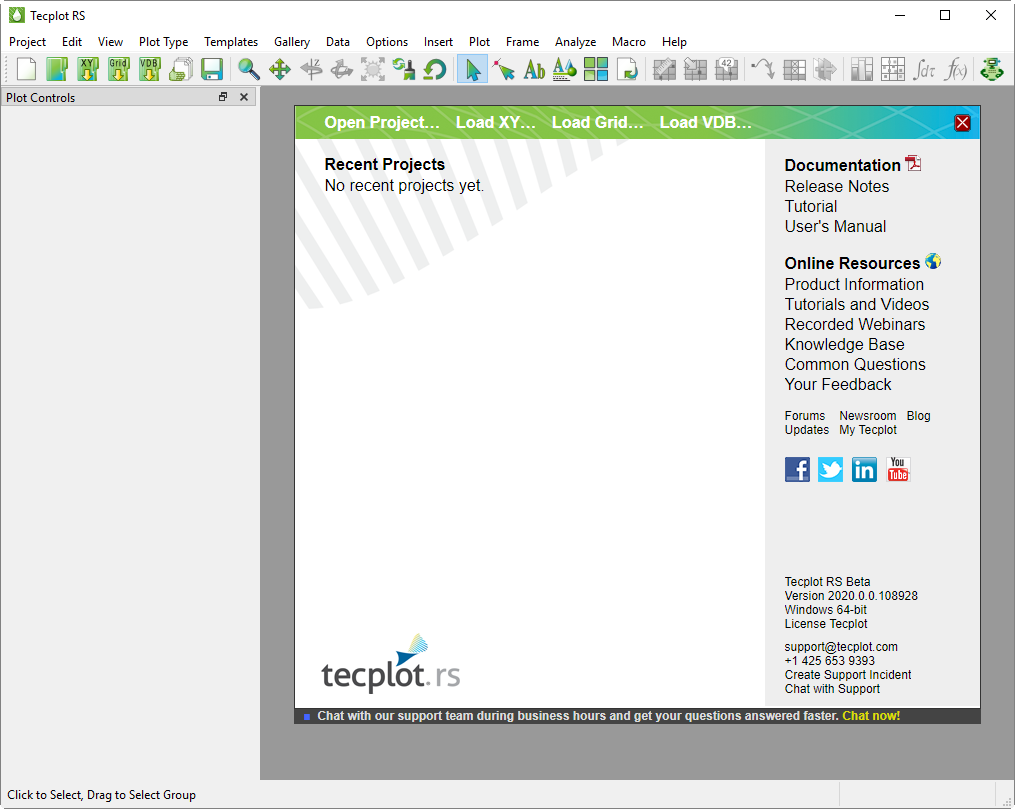
The Welcome screen contains links that help you quickly get started working with your data and Tecplot RS.
-
Across the top are links for opening projects and data files.
-
The left section provides a list of projects you have recently worked with.
-
The right column contains links to documentation and other resources to help you get the most out of Tecplot RS.
-
At the very bottom of the right column is information for contacting Technical Support, including the version and platform information you will need for a support incident.
The Welcome Screen automatically disappears when you open a project or data file. You may also close it manually by clicking the red X button in the upper right corner; this returns you to your existing session if you have chosen while you were working with a plot.
Input Devices
Tecplot RS supports the following input devices:
-
Standard mouse - Used for pointing at, selecting, and manipulating objects in the workspace; changing the view; choosing fields and manipulating controls in dialogs and sidebars; and performing actions or commands using the toolbar or menus. Most mice have multiple buttons and a scroll wheel, which provide quick access to specific functions.
-
Keyboard - Used for entering data and text and for activating commands using menu shortcuts. In conjunction with a mouse, can be used to switch modes when clicking or dragging.
-
3D Mouse - A secondary input device that allows 3D grid plots to be zoomed, translated, and rotated with a touch. Additionally, the always-active 3D mouse doesn’t make you select mouse modes, commands, or keyboard shortcuts. A 3D mouse can therefore enable faster exploration of your data and improve the experience of working with your 3D plots.
3D Mouse
| Tecplot RS supports 3D mouse products from 3Dconnexion, such as the SpaceMouse, SpaceNavigator, and SpacePilot lines, and only on the Windows platform. |
Actions available with a 3D mouse include:
-
Translation - Push the mouse cap left or right, pull it up, or push it down, to translate the plot left/right or up/down on the screen.
-
Zooming - Push the mouse cap toward you or away from you to zoom the plot. Hold down the Alt key while zooming to switch zoom methods.
The default zoom method depends on whether the current frame’s 3D view mode is perspective or orthographic (see 3D View Details). The results of zooming using the 3D mouse and the Alt key are shown here.
| Pushing or pulling mouse cap | In perspective mode | In orthographic mode |
|---|---|---|
Normal (without Alt key) |
Changes view distance |
Changes view width |
Alternate (pressing Alt key) |
Changes view width |
Changes view distance |
-
Rotation - Rotation is around the defined center of rotation, by default the center of the data. However, the axis of rotation is relative to the screen rather than to the data.
-
X axis - Tilt the mouse cap forward or back to rotate around the screen’s X axis, as if rolling your plot toward you or away from you.
-
Y axis - Twist the mouse cap clockwise or counterclockwise to rotate around the screen’s Y axis, as if on a lazy susan.
-
Z axis - Tilt the mouse cap left or right to rotate around the screen’s Z axis, like the hands of a clock.
With practice, it is possible to perform more than one of these operations at the same time. At first, though, it is best to be careful to invoke only one function at a time.
Most 3D mice also have one or more buttons, which can be mapped to commands that you use frequently using the software provided with the device.
| A handy command to assign to a 3D mouse button is the keystroke "o" (lowercase letter O), which is used to set the center of rotation to the current mouse pointer position in Tecplot RS. |
Tecplot RS supports the following actions (built-in to the 3D mouse software) that may be mapped to buttons using the device software:
-
Fit
-
Front, Back, Top, Bottom, Left, and Right View
-
Isometric View 1 (Tecplot RS default view) and 2 (theta 180 from default)
-
Roll CW and CCW (in 90 increments)
Tecplot RS Workspace
Five major sections make up the Tecplot RS workspace, as you can see when you launch Tecplot RS:
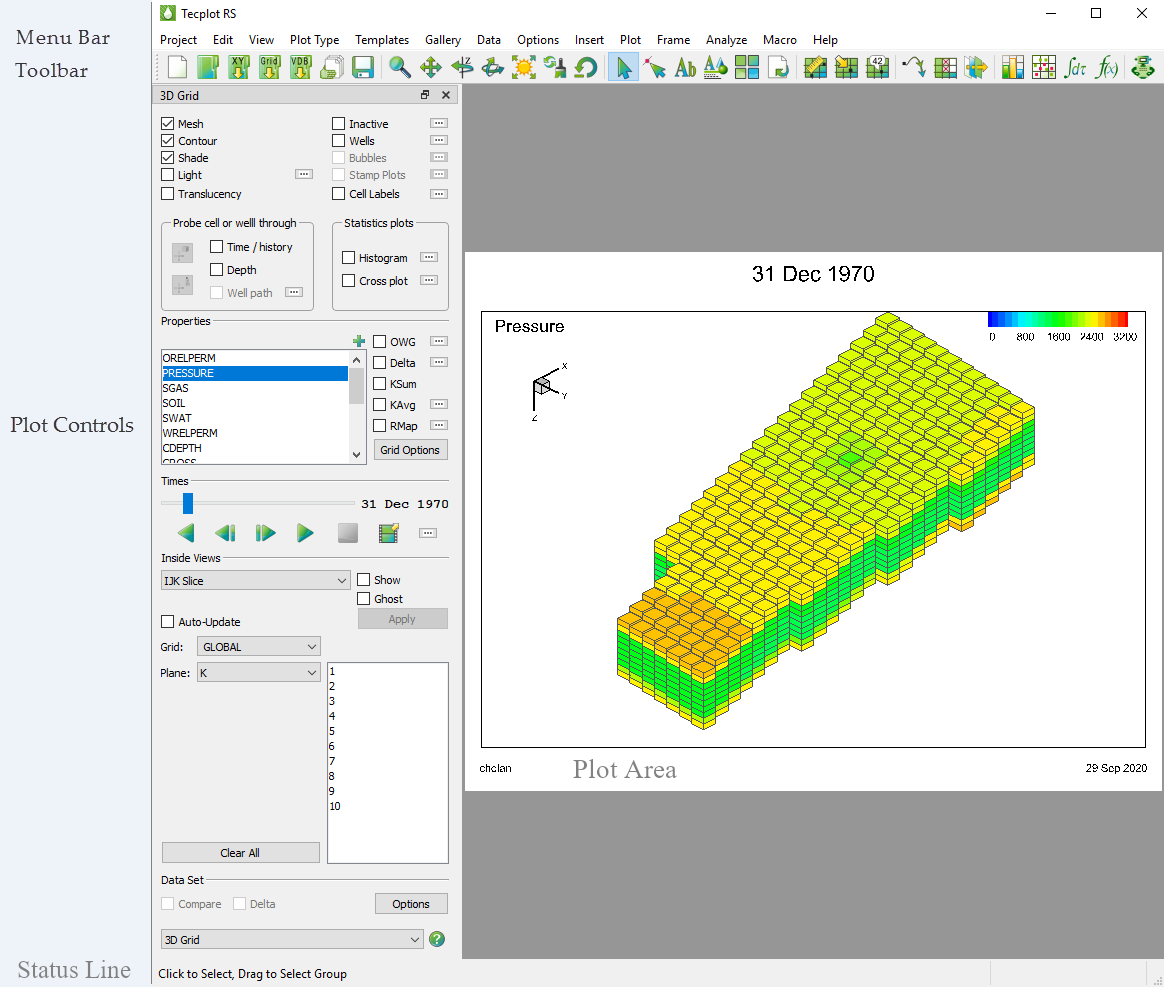
Refer to the following sections to learn about each area of Tecplot RS. You can think of the five sections like this:
-
View your plots in the plot area.
-
Use the menu bar for systematic access to almost every feature in Tecplot RS, and for feature configuration dialogs.
-
Use the toolbar for quick access to accomplish the common tasks in your workflow.
-
Use the sidebar to configure your plot and its settings.
-
Watch the status line for helpful information about your current task.
Plot Area
The plot area makes up the largest space of the Tecplot RS environment. All created plots appear in this area, inside one or more frames. Tecplot RS considers each visible measure of the workspace as a page. The current state of the plot workspace, including the data files loaded, the plot type chosen, the templates applied, and most attributes of your plot, make up a project.
Frames
By default, the plot area contains one empty frame. Frames, inside the plot area, contain all the elements of your plot. Your plot can contain one or more frames, and you can independently size and position each frame in your plot area (although most plot types will revert to standard frame layout when you change plot type). Because most items in a plot scale relative to the frame by default, you can create layouts that will automatically adjust to different paper sizes (for printing), or resize frames to add an extra image. Tecplot RS displays the frame background as white; you can customize this in the menu. To learn more, see the Using Frames section.
Pages
Usually, Tecplot RS allows only one page, or visual measure of the workspace, in the workspace. However, when you are using the XY Freestyle Plots plot type, you can add additional pages to your project.
Projects
Tecplot RS creates projects as very small files that keep track of the work done in your plots so you do not have to repeat work to retrieve a previously created plot. Learn more in the Projects section.
Menu Bar
The Tecplot RS menu bar appears across the top of the Tecplot RS workspace. Each menu provides access to various related Tecplot RS functions and their settings.

Tecplot RS’s features are organized into the following menus:
-
Project When you use the Tecplot RS interface, you are always working within a project. The menu enables you to save your project, open a new one, load data files into your project, manage loaded data, print and export your project, and more. To learn more about projects, see the Projects section.
-
Edit Use the menu to cut, copy, paste, or clear objects in your project. You can also copy your plot to your operating system’s clipboard to quickly export it. To read about these functions, see the Using the Edit Menu section.
| Cut, Copy, and Paste work only within Tecplot RS. To paste a graphic image of your project into another program, use 'Copy Plot to Clipboard'. This option is available on Windows platforms. |
-
View Use the menu to manipulate your perspective of your data, including scale, range, and rotation. You can also use the menu to copy and paste views between frames, choose whether to display the sidebar or menu bar, and more.
The menu includes the following convenient sizing options:
-
Fit Everything The Fit Everything control resizes a plot so that all data points, text, and geometries fit visibly in the frame.
-
Fit Data Choose "Fit Data" to fit all the loaded data points visibly in the frame.
For more information about controls in the menu, see Changing the View.
-
Plot Type With the menu, you can control which plot type to display. For more information, see the Plot Types section.
-
Templates With the menu, you can save or apply templates to your plot. To learn about templates, go to Templates.
-
Gallery Provides access to plot settings you’ve saved, as described in the Bookmark Gallery section.
-
*Data *Use the menu to create, manipulate, and examine data. In Tecplot RS, you can manipulate your data through blanking, probing, extracting data, and creating or altering variables.
-
Options With the menu, you can control the attributes of your workspace, including the plot, display, and performance attributes. Learn more in the Customization section.
-
Insert Use the menu to add text, geometries (polylines, squares, rectangles, circles, and ellipses), or image files to your plot. Learn more in the Adding Text, Adding Geometries, and Adding Images sections.
-
Plot Use the menu to control variable assignments and streamtrace attributes in your plots.
-
Frame Use the menu to create, edit, and control frames in your plot. To learn more, see the Using Frames section.
-
Analyze Go farther understanding your data with the advanced features available in the Analyze menu. Read more in the Data Analysis section.
-
Macro The menu controls the ability to record or play macros. Read more in the Macros: Task Automation section.
-
Help The menu gives access to information about Tecplot RS. Choose "Tecplot RS Help" from the menu to view specific, complete help articles about features or operations within Tecplot RS. By choosing "About Tecplot RS" from this menu, you can obtain specific information about your license.
Plot Controls Sidebar
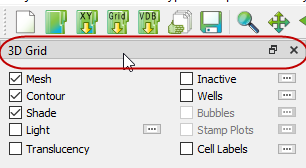
The Plot Controls sidebar appears along the left side of the Tecplot RS window and provides easy access to modify plot settings. Although some operations use dialogs, you can control most inputs and make plot modifications directly in the sidebar.
You can un-dock the Plot Controls sidebar by dragging its title bar to a new position. To put the Plot Controls back on the side of the workspace, double-click on its title bar (the region that displays the words "Plot Controls"). Or you can drag its title bar to either side of the workspace and let go, and it will snap into place.
While the sidebar contents depend on the plot type displayed, many regions of the sidebar display for multiple plot types and serve common purposes in Tecplot RS, as discussed in the following sections.
Plot Layers
The layer controls at the top of the sidebar set the display of various drawing layers in your plot. The control must be checked (active) to display the corresponding layer. You can choose to have the controls applied on a frame-by-frame basis (giving you the ability to turn off the mesh on one frame and have it on in a second), or have them applied to all frames in a multi-frame plot. To investigate these settings, look in the Multi-Frame Options dialog.
The plot layers available depend on the active plot type. Generally, one set of controls displays for XY plot types, and a different set of controls displays for grid plot types. Several plot layers that display for grid plot types display only for 3D Grid plots. For additional plot layer information, review the chapters corresponding to each plot type.
Paging: Animation and Scrolling Controls
A series of animation and scrolling buttons display in the sidebar for most plot types.
-
 and
and
 (Next and Previous) Retreat
or advance a single step.
(Next and Previous) Retreat
or advance a single step. -
 (Play) Cycle through all
entities in the list or play through all time steps in the data. The play
list normally begins at the current entity or time step and progresses to
the final item in the list (or time step in the data).
(Play) Cycle through all
entities in the list or play through all time steps in the data. The play
list normally begins at the current entity or time step and progresses to
the final item in the list (or time step in the data). -
 (Reverse Play) Click the
Reverse button to view the animation sequence in reverse.
(Reverse Play) Click the
Reverse button to view the animation sequence in reverse. -
 (Stop) Click the Stop
button to interrupt the animation process.
(Stop) Click the Stop
button to interrupt the animation process. -
 (Export) Click the Export
button to launch the Auto-Export dialog for a variety of output choices.
See the
Exporting an Animation or Group of Images
section for more information.
(Export) Click the Export
button to launch the Auto-Export dialog for a variety of output choices.
See the
Exporting an Animation or Group of Images
section for more information. -
 (Details) Click the
Details button to launch the Time Options
dialog (2D or 3D Grid plot only). Similar Details buttons in other
locations of the interface access other settings dialogs.
(Details) Click the
Details button to launch the Time Options
dialog (2D or 3D Grid plot only). Similar Details buttons in other
locations of the interface access other settings dialogs.
Not every button is available for every plot type, and the functions may differ slightly according to the different plot types.
| Use the Load/Save page of the Plot Options dialog to adjust the delay between animation steps. |
Toolbar Buttons
Tecplot RS includes a toolbar of buttons to provide quick access to the most important steps in your workflow, and most of these buttons also appear in the sidebar. To learn more about these buttons, see Toolbar. Hover your pointer over each button to see that button’s tool tip.
Expanded Lists
Whenever you see the  button,
next to a list in the sidebar or a dialog, you can click this button
to open an expanded dialog of the list. To find an item in the list
more easily, you can type letters in the Filter field at the top of
the list. Only items that include those letters in that order will
appear in the expanded list. For example, to display only items with
the word "well" in their name, type "well" into the Filter field.
button,
next to a list in the sidebar or a dialog, you can click this button
to open an expanded dialog of the list. To find an item in the list
more easily, you can type letters in the Filter field at the top of
the list. Only items that include those letters in that order will
appear in the expanded list. For example, to display only items with
the word "well" in their name, type "well" into the Filter field.
Plot Types
 The current plot type displays at
all times in a menu at the bottom of the sidebar. This reflects the plot
type chosen in the Plot Type menu, and you can change the plot type in
either place.
The current plot type displays at
all times in a menu at the bottom of the sidebar. This reflects the plot
type chosen in the Plot Type menu, and you can change the plot type in
either place.
Tecplot RS includes the following plot types.
-
XY Plots Tecplot RS includes eight specific types of XY plots, each with smart defaults to optimize different types of data or plot specifications:
-
XY Variables XY Variable plots depict a single independent (x-axis) variable with up to five dependent (y-axis) variables. The axis variable selections apply to all entities (such as wells, fields and groups).
-
XY Entities XY Entity plots depict an entity or group of entities plotted for a single XY axes variable pair.
-
XY Subsets XY Subset plots allow you to view all of the components of a single well, user group or branch at one time (for a single variable).
-
XY Freestyle Plots XY Freestyle plots allow you to manually specify the components of your plot.
-
Custom XY Plots XY Custom plots allow you to define a set of plots for which you can select the variables to plot and the order in which they appear.
-
XY Custom Entities XY Custom Entities plots combine XY Custom and XY Entity plots. As with XY Custom plots, you can select the variables to plot and the order they should appear. XY Custom Entities expands this function by allowing you to plot multiple entities.
-
RFT Plots RFT plots display observed or simulated values at one or more depths along a well at a given time.
-
Completion Profiles Completion Profile plots display variables versus level (completion) at a single point in time.
-
-
Flow Tables Flow Tables contain an N-dimensional array of bottom hole pressure (BHP) values plotted for N-independent variables. BHP is shown on the Y-axis of the plot.
-
Grid Plots Tecplot RS includes 2D and 3D Grid plots. For further discussion of these plot types, see Basic Grid Plots.
-
Paper Layout Use the Paper Layout to control the styles of your plot frames, headers and footers on the paper for display or printing.
Toolbar
Tecplot RS includes a toolbar of buttons to provide quick access to the most important steps in your workflow. By default, the toolbar appears below the menu bar, but you can move the toolbar to whichever edge of the application window you find most useful.
To move the toolbar to a new location, drag the left edge of the toolbar to the new location. Drag it to an edge of the Tecplot RS application window to dock the toolbar on that edge.

You can use these buttons to control the pointer mode, execute an action, or gain quick access to a popular dialog. Hover over each button for a tool tip about that button.
The toolbar buttons are organized into common workflow steps.
Load Data
The first group of tools control bringing your data into Tecplot RS with minimal effort so that you can visualize it in your plot.
Create Project
Use the  button to begin
a new project in Tecplot RS.
button to begin
a new project in Tecplot RS.
A project is the highest level of organization in Tecplot RS; everything you do in Tecplot RS happens inside a project, in which you can save plots and groups of data to easily come back to later. A Project file is small, taking up very little space (because it consists of an XML macro file that Tecplot RS runs when you open the project to replicate your previous work on your plot).
Open Project
Use the  button to
quickly return to a previously saved project. With this button, you can
browse to a saved project. You can also use the Project menu to quickly
return to a listed recent project.
button to
quickly return to a previously saved project. With this button, you can
browse to a saved project. You can also use the Project menu to quickly
return to a listed recent project.
Load XY Data, Load Grid Data, Load VDB Data
 With the three
Load Data buttons, you can quickly open the dialog to load either XY
or grid data into your project. Click the Load XY Data button to load
XY data, click the Load Grid Data button to load grid data, or
click the Load VDB Data button to load data from a Virtual Database
(VDB) folder.
With the three
Load Data buttons, you can quickly open the dialog to load either XY
or grid data into your project. Click the Load XY Data button to load
XY data, click the Load Grid Data button to load grid data, or
click the Load VDB Data button to load data from a Virtual Database
(VDB) folder.
| You can also load XY data by dragging a folder containing XY data files onto the Tecplot RS icon or onto the Tecplot RS application window. To learn more, see Loading a Folder of XY Data Files. |
Manage Data
The  button opens a
dialog with which you can manage your loaded data, such as choosing which
data set is active. (This is useful if you have more than one data file
loaded.) To learn more about the Manage Data dialog, go to
Managing XY Data.
button opens a
dialog with which you can manage your loaded data, such as choosing which
data set is active. (This is useful if you have more than one data file
loaded.) To learn more about the Manage Data dialog, go to
Managing XY Data.
Save Project
 Save the current
state of your open project by clicking the Save Project button. This
way, you can quickly return to the exact data, settings, and view
that you are working with when you save your project. To learn more
about the value of using projects, see the Projects section.
Save the current
state of your open project by clicking the Save Project button. This
way, you can quickly return to the exact data, settings, and view
that you are working with when you save your project. To learn more
about the value of using projects, see the Projects section.
Adjust View
The second group gives you the ability to change the view of your data.
Zoom
 With the Zoom tool you can
control how much of your plot fills the frame by zooming into and out
of your plot.
With the Zoom tool you can
control how much of your plot fills the frame by zooming into and out
of your plot.
-
Click the Zoom tool on an area in your plot to zoom in, centered around the position that you clicked.
-
Hold down the Ctrl key while clicking the zoom tool to zoom out, centered around the position that you clicked.
-
Drag the Zoom tool in your plot to create a rectangle around the desired view area. Tecplot RS will fit the selected rectangle into the frame.
-
To zoom the entire paper of the Tecplot RS workspace, hold down the Shift key while dragging the Zoom tool in your plot, creating a rectangle around the desired view area. Tecplot RS will resize the plot so that the longest dimension of the zoom box fits into the workspace. You can fit one or all frames to the workspace by using the or options in the menu (after choosing in the menu).
| To zoom with just your pointer, position it anywhere on the frame and drag the middle pointer button up and down in the frame. The grid will move away from you as you move the pointer up, and closer when you move the pointer down. |
3D mouse - Tecplot RS also supports a 3D mouse, an input device that allows zooming (and translation and rotation) of 3D plots with a touch. You do not need to activate the Zoom tool to use the 3D mouse for zooming. Simply push the mouse’s cap toward or away from you to zoom. Hold the Alt key while zooming with the 3D mouse to switch the zoom method (see Input Devices for details).
Avoid tilting the mouse cap, as this may induce unintended rotation.
To return to the previous view, choose from the menu.
Translate
 Use the Translate tool to
reposition your plot within the frame. With the Translate tool, drag
your pointer to move your plot within its frame. Hold down the
Shift key while dragging with the Translate tool to move the
paper within the Tecplot RS workspace.
Use the Translate tool to
reposition your plot within the frame. With the Translate tool, drag
your pointer to move your plot within its frame. Hold down the
Shift key while dragging with the Translate tool to move the
paper within the Tecplot RS workspace.
| You can use the pointer to "shift" the view within the frame. Drag the right pointer button anywhere in the frame to drag the view left, right, up, or down. |
3D mouse - Tecplot RS also supports a 3D mouse, an input device that can be used to translate 3D plots at any time with just a touch, regardless of the tool or mode selected.
-
Pull the mouse’s cap up or push it down to translate up or down on the screen.
-
Move the mouse’s cap left or right to translate left or right on the screen.
Avoid tilting or rotating the mouse when using these motions to avoid rotating the plot.
Rotate about Z-Axis
 Click the Z-axis Rotation
button and drag the pointer in your plot to rotate it about the Z-axis.
Click the Z-axis Rotation
button and drag the pointer in your plot to rotate it about the Z-axis.
| When using either the Rollerball or the Z-Axis Rotation tools, you can switch to the other rotation tool by pressing the Z key (to switch to the Z-Axis Rotation tool) or R (to switch to the Rollerball Rotation tool). |
Rotate (Rollerball)
 Click the Rollerball
button to rotate the plot freely about all axes. After clicking the
button in the sidebar, use the left pointer button to "roll" the ball in
any direction.
Click the Rollerball
button to rotate the plot freely about all axes. After clicking the
button in the sidebar, use the left pointer button to "roll" the ball in
any direction.
| To rotate your plot using only the pointer and the Ctrl key, hold down the Ctrl key, hold down the right pointer button, and move your pointer. |
3D mouse - Tecplot RS also supports a 3D mouse, an input device that can be used to rotate 3D plots at any time regardless of the tool or mode selected. The axis of rotation is relative to the screen rather than to the data.
-
Tilt the mouse’s cap forward or backward to rotate around the screen’s X axis, as if rolling toward or away from you.
-
Twist the mouse’s cap clockwise or counterclockwise to rotate around the screen’s Y axis, as if on a lazy susan.
-
Tilt the mouse’s cap left or right to rotate around the screen’s Z axis, like the hands of a clock.
Move Light Source
 With the Lighting
tool (available for 3D grid plots), you can adjust the shading to indicate
the direction of the light source. To accomplish this, click on the
Lighting tool, and then drag on your plot to adjust the light source. Make
sure the Light layer is toggled on in the sidebar in order to see the effect.
With the Lighting
tool (available for 3D grid plots), you can adjust the shading to indicate
the direction of the light source. To accomplish this, click on the
Lighting tool, and then drag on your plot to adjust the light source. Make
sure the Light layer is toggled on in the sidebar in order to see the effect.
You can see when you have the Lighting tool active, since the cursor changes to a moveable sun as well. To learn more about the light source feature, see Lighting Layer.
Redraw
Click the  button
to redraw all frames in your workspace. Tecplot RS sets the redraw mode to
automatic (your plot redraws automatically when you make a change), so the
Redraw button is seldom needed. However, you can use it to refresh the view
if something interrupts the drawing process, or during macro recording.
button
to redraw all frames in your workspace. Tecplot RS sets the redraw mode to
automatic (your plot redraws automatically when you make a change), so the
Redraw button is seldom needed. However, you can use it to refresh the view
if something interrupts the drawing process, or during macro recording.
| You can interrupt the auto-redraw at any time by clicking your pointer or pressing any key on the keyboard. |
Reset View
 To restore your plot to its
initial view, click the Reset View button. This will return the plot to the
initial settings. In a 3D plot, this button restores to the saved
Custom 3D View, rather than to the default view, if one exists in the
current project (See
Custom 3D View).
To restore your plot to its
initial view, click the Reset View button. This will return the plot to the
initial settings. In a 3D plot, this button restores to the saved
Custom 3D View, rather than to the default view, if one exists in the
current project (See
Custom 3D View).
| In 2D views, Tecplot RS also resets the view when you change the view plane (for example, from I to J plane views). |
Adjust Plot
With the next group of toolbar buttons you can make adjustments to your plot, such as adding text or arranging frames of data.
Selector
 Use the Selector tool to
select objects in your workspace. This tool is the most multi-purpose of
the tools. You can often use it in combination with other tools. For
example, after inserting text, use the Selector tool to double-click on
the text to reopen the Text Details dialog and edit the text.
Use the Selector tool to
select objects in your workspace. This tool is the most multi-purpose of
the tools. You can often use it in combination with other tools. For
example, after inserting text, use the Selector tool to double-click on
the text to reopen the Text Details dialog and edit the text.
You can select and translate the following objects using the Selector tool:
-
Frames
-
Text and geometries
-
Contour labels
-
Legends
To select an object and open that object’s settings dialog (if available), double-click on the object with the Selector tool.
Adjustor
 Use the Adjustor tool to
perform any of the following modifications to your plot and data:
Use the Adjustor tool to
perform any of the following modifications to your plot and data:
-
Location of individual data points in a grid plot (2D Grid plots)
-
Values of data set variables at a particular point (XY plots)
-
Length or placement of individual axes (2D grid and XY plots)
-
Spacing between an axis label and its axis (2D grid and XY plots)
-
Shape of a polyline
For all other scenarios, the Adjustor tool acts the same as the Selector tool.
| Since the Adjustor tool can alter your data, be sure you want to use the Adjustor tool before dragging points in the plot area. |
To use the Adjustor tool, click to select the point you wish to adjust, and then drag the Adjustor from the point to the desired location.
| For XY Line plots, if several mappings are using the same data for one of the variables, adjusting one of the mappings will result in simultaneous adjustments to the others. You can avoid this by pressing the H or V key on your keyboard while adjusting the selected point. The H and V keys restrict the adjustment to the horizontal and vertical directions, respectively. |
Insert Text
 Use the Insert Text tool
to add text to your plot. To learn more about adding text to your plot,
see Adding Text.
Use the Insert Text tool
to add text to your plot. To learn more about adding text to your plot,
see Adding Text.
Plot Options
 Click this button
to launch the Plot Options dialog, with which you can customize many plot
settings. Refer to Plot Options
for additional information.
Click this button
to launch the Plot Options dialog, with which you can customize many plot
settings. Refer to Plot Options
for additional information.
Multi-Frame Options
 Click this button
to launch the Multi-Frame Options dialog, with which you can customize the
arrangement of frames in your workspace. Refer to
Multi-Frame Options
to learn more about this feature.
Click this button
to launch the Multi-Frame Options dialog, with which you can customize the
arrangement of frames in your workspace. Refer to
Multi-Frame Options
to learn more about this feature.
Update Paper Layout
 With the Update
Paper Layout button, you can set style or positioning changes in the
current plot type as the new default for all plot types. For example,
if you wish to change the position of the legend for all plot types, use
the selector tool to move the legend in the current plot type and then
click the Update Plot Layout to make this position the new default. Now
when you switch plot types, the legend will appear in the new position,
rather than reverting to the old default position. Refer to
Modifying your Paper Layout for additional
information.
With the Update
Paper Layout button, you can set style or positioning changes in the
current plot type as the new default for all plot types. For example,
if you wish to change the position of the legend for all plot types, use
the selector tool to move the legend in the current plot type and then
click the Update Plot Layout to make this position the new default. Now
when you switch plot types, the legend will appear in the new position,
rather than reverting to the old default position. Refer to
Modifying your Paper Layout for additional
information.
Analyze Data
With this more advanced group of buttons, you can examine your data or make more complicated adjustments.
Measure Distance
 The Measure Distance
tool displays the straight-line distance between two points clicked on a 2D
or 3D grid in the Tecplot RS status bar. Each pair of clicks sets a start
and end point for distance measurement.
The Measure Distance
tool displays the straight-line distance between two points clicked on a 2D
or 3D grid in the Tecplot RS status bar. Each pair of clicks sets a start
and end point for distance measurement.
Probe
 With the Probe tool, you
can view variable values of any selected data point.
With the Probe tool, you
can view variable values of any selected data point.
Click the Probe tool to activate it, and then click in your plot to view variable values at that point:
-
To obtain interpolated values of the data set variables at a specified location, click at any point in the data region.
-
To obtain exact values for the data point nearest the specific location, Ctrl+Left-click at the desired location.
See Data Queries and Data Probing to learn more.
| For XY plot types, when you move into the axis grid area, a vertical or horizontal line augments the pointer cross hair, depending on whether you are probing along the X-axis or the Y-axis. You can change the axis to probe simply by pressing X to probe the X-axis or Y to probe the Y-axis. |
Quick Probe
 The Quick Probe tool,
available in 2D and 3D Grid plots, lets you see the value of the contour
variable at the probed point. Instead of displaying a dialog, as the Probe
tool does, this tool quietly displays the coordinates and probed value in
the status bar at the bottom of the Tecplot RS window. See
Data Probing to learn more.
The Quick Probe tool,
available in 2D and 3D Grid plots, lets you see the value of the contour
variable at the probed point. Instead of displaying a dialog, as the Probe
tool does, this tool quietly displays the coordinates and probed value in
the status bar at the bottom of the Tecplot RS window. See
Data Probing to learn more.
Streamtrace
 Click this button
to activate the Streamtrace tool, with which you can add a streamtrace
interactively by clicking in your plot. Drag to add a rake of streamtraces.
Choose the number of streamtraces to include when adding a rake by
prefacing the dragging with pressing a number (1-9) on the keyboard. See
Streamtraces for more information.
Click this button
to activate the Streamtrace tool, with which you can add a streamtrace
interactively by clicking in your plot. Drag to add a rake of streamtraces.
Choose the number of streamtraces to include when adding a rake by
prefacing the dragging with pressing a number (1-9) on the keyboard. See
Streamtraces for more information.
Cell Blanking
 Clicking this button
launches the Cell Blanking dialog. Cell blanking allows you to remove data
points above or below a specified threshold. Refer to
Cell Value Blanking
and
Pick Blanking
for more information.
Clicking this button
launches the Cell Blanking dialog. Cell blanking allows you to remove data
points above or below a specified threshold. Refer to
Cell Value Blanking
and
Pick Blanking
for more information.
Property Modifier
 This button opens the Property
Modifier dialog, which allows you to create an ASCII file to use as input
into reservoir simulators, optionally changing the values of properties
throughout the entire grid or in a subset. See
Property Modifier for more information.
This button opens the Property
Modifier dialog, which allows you to create an ASCII file to use as input
into reservoir simulators, optionally changing the values of properties
throughout the entire grid or in a subset. See
Property Modifier for more information.
Histogram
 Click the Histogram button
to display a histogram of your data in the Tecplot RS workspace. For more
information, see Histograms.
Click the Histogram button
to display a histogram of your data in the Tecplot RS workspace. For more
information, see Histograms.
Cross plot
 Click the Cross plot button
to display a quick cross plot of your data in the Tecplot RS workspace. For
more information, see Cross Plots.
You cannot view a cross plot and a histogram at the same time.
Click the Cross plot button
to display a quick cross plot of your data in the Tecplot RS workspace. For
more information, see Cross Plots.
You cannot view a cross plot and a histogram at the same time.
Integrate
 This button opens
the Integration dialog, with which you can run integrations on your data.
This button opens
the Integration dialog, with which you can run integrations on your data.
Calculate
 Use the Calculate
button to open the equations dialog corresponding to the current plot type
(either the XY Equations dialog or the Grid Equations dialog). With this
dialog, you can use equations to create new variables that are expressions
of existing variables (for example, PRESSURE divided by SOIL).
Use the Calculate
button to open the equations dialog corresponding to the current plot type
(either the XY Equations dialog or the Grid Equations dialog). With this
dialog, you can use equations to create new variables that are expressions
of existing variables (for example, PRESSURE divided by SOIL).
Automate Your Processes
With the final button, you can automate repetitive processes to save time analyzing additional data.

Template and Filter Data
Although we do not have toolbar buttons for this section, you may wish also to apply templates and/or filters to customize your output.
To create or edit templates, switch to the Paper Layout plot type. To apply a template, choose from the menu. To learn more about templates, see Saving and Reusing Views and Plots.
To apply filters to your data, you can use the Grid Equations and XY Equations dialogs from the Analyze Data section of the toolbar.
Export and Interpret Results
Finally, Tecplot RS provides quick access to full views or export options for your data.
To give a full screen view of your data, choose from the menu to turn off the sidebar. Choose from the menu to turn off the sidebar.
Exporting an Animation or Group of Images
You can export an animation by clicking the Export button in the Time region of the sidebar, or export an image by choosing from the menu or from the menu. To learn more about exporting, see Printing and Exporting.
Status Line
The status line that appears along the bottom edge of the Tecplot RS environment displays "hover help". When you move the pointer over a tool in the toolbar, a button in a dialog, or a menu item, a description of the control appears. The status line also provides a progress bar and information during non-trivial calculations.
During calculations for which the progress bar displays, you can stop the operation by clicking the Stop button in the status line.
Basic Style Editing Concepts
The
Plot Options dialog provides
numerous options for modifying the style of various plot objects. You can
use the button to launch the Plot Options dialog, or choose from the menu. Even more conveniently, you can
double-click with the selector tool on any plot object to open its
associated options dialog. For example, to change the color of a line in an
XY plot, double-click the pointer on that line. This opens the Plot Options
dialog on the page that controls the associated style options and selects
the variable illustrated by that line in the plot. You can make the desired
style changes and click Apply to update the plot. Similarly, you can
double-click on an axis to change the range for that axis or edit the axes
styles. For grid plots, you can double-click on the grid itself to open the
Plot Options dialog on the Grids page, where you can modify the
grid-related style options. You can also double-click on the grid color
legend to bring up the Grid Legend page, on which you can change the range
settings and other options associated with the style of the legend.
To gain a greater understanding of how the options dialogs interact with features in your plot, double-click on various plot objects.
Data Queries
At any point while using Tecplot RS, you can look up the value(s) of your data using one of the following functions:
-
Probing Use the probe or quick probe tool (in the toolbar), or choose or from the menu to look up the value of your variables at a given grid cell. Refer to Data Probing for additional information.
-
Data Set Info Use the Data Set Info dialog (accessible by choosing from the menu) to view information about your data set, including variable ranges and auxiliary data. Refer to Viewing Data Set Information for additional information.
-
Spreadsheet Use the Data Spreadsheet dialog (accessed by choosing from the menu) to view variable values in spreadsheet form. Refer to Viewing XY Data for additional information.
-
Data Range Launch the Data Ranges dialog (accessed by choosing from the menu) to quickly view the range of each variable (for all time steps) in your data set.
Help
In addition to the manuals, the standard installation of Tecplot RS includes a fully integrated help system, Tecplot RS Help. This searchable group of help pages (HTML) display in your default Internet browser.
To access this help quickly:
-
Click a Help button in any Tecplot RS dialog
-
Click an additional Help or Question ? button within Tecplot RS. For example, the Question button next to the Plot type menu in the sidebar will display help for the active plot type.
-
Choose from the menu.
From each of these locations you can navigate throughout the entire Tecplot RS Help Library. The Tecplot RS Help Library supports text search, includes hypertext links, and provides detailed information on all menus and dialogs.
If you are covered by an active TecPLUS subscription, help is also available from 6:30 A.M. to 5 P.M. Pacific Standard Time from Tecplot Technical Support at 425.653.9393.
You can also send an e-mail to Support with your questions.