Customization
This section describes how you can use the Preferences dialog in the menu or, more technically, edit your configuration file, to customize aspects of your Tecplot RS sessions.
Performance Dialog
In the Performance dialog you can adjust the methods of Tecplot RS’s image rendering and calculation. The factory settings in the dialog are designed for moderately-sized data and occasionally may need to be adjusted to optimize Tecplot RS’s rendering performance.
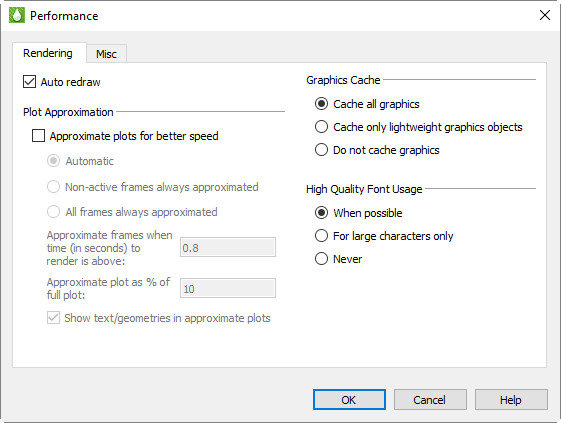
The dialog has the following options:
- Auto Redraw
-
When selected, Tecplot RS will automatically redraw the plot whenever style or data changes. Some users prefer to turn this option off while changing multiple style settings, and then manually pressing Tecplot RS’s [Redraw] button on the Plot sidebar to see the full plot.
| Auto-redraw can be interrupted with a mouse click or key press. |
- Enable Statistics Overlay
-
When selected, Tecplot RS will show the frame rate (FPS) in Hz, the frame time in milliseconds to render the frame, and the GPU name. Note that FPS is limited to 60.
Load On Demand
With load-on-demand activated, Tecplot RS generates plots faster and using less memory by only loading data that is needed for the plot. If changes to the plot style require additional variables to be loaded, Tecplot RS will automatically load them, and if necessary, unload variables that are no longer used. Tecplot RS’s ability to automatically load and unload variables on demand allows you to examine data that is much larger than the physical or virtual memory of your computer.
For large datasets, only the zones and variables currently in use will be loaded. However, for small datasets, some other zones and variables may be loaded for you (based on the Memory Threshold).
- Unload Strategy
-
Specifies how to manage unloading variables and other load-on-demand resources.
- Auto Unload
-
This strategy attempts to keep Tecplot RS’s memory use within the defined Min and Max Memory Thresholds. Tecplot RS uses these values to determine when and how much it should unload. This is the best option for exploring data as Tecplot RS only unloads if and when the memory threshold has been exceeded; if the threshold is not exceeded, data loaded on-demand remains available in memory if you need it again.
- Minimize Memory Use
-
This strategy is used if more aggressive unloading of variables and other load-on-demand resources is required. This option is best suited for animating through a very large number of time steps, where each time step consumes a significant part of the computer’s available physical and virtual memory.
- Never Unload
-
This strategy disables the unloading capability of load-on-demand while still preserving the ability to load variables on demand.
Most users should select either the "Auto Unload" or "Minimize Memory Use" options. - Memory Threshold (%) [Auto Unload ONLY]
-
When Tecplot RS uses at least the maximum percentage of the available physical and virtual memory, it will attempt to unload variables and other load-on-demand resources until the available physical and virtual memory is at or below the specified minimum percentage.
Variable Derivation
When Tecplot RS needs to create a nodal variable from a cell centered variable, it uses a prescribed derivation method. Tecplot RS provides two such derivation methods: fast and accurate.
- Fast (Linear)
-
When selected, Tecplot RS uses simple averaging to derive a nodal variable from a cell centered one.
- Accurate (Laplacian)
-
When selected, Tecplot RS uses Laplacian interpolation to derive a nodal variable from a cell centered variable.
Status Information
Use the following controls in the Status Line region of the dialog to customize what is displayed in the status line:
- Show Status Line
-
Turn this preference on/off to control the display of status messages.
If you are remotely displaying Tecplot RS on an X terminal, updating the status line can slow down processing. If this is the case, turn off the Show Status Line control. - Show Continuous State Messages
-
Turn on this control to receive context-sensitive commentary in the status line.
- Show Continuous Running Coordinates
-
Turn on this control to display the coordinates of your mouse cursor in the status line.
- Show Tool Tips
-
Use this option to turn tool tips on or off.
Configuration Files
A Tecplot configuration file is a special type of Tecplot macro file that Tecplot RS reads on start up. Use customized configuration files to override any or all of Tecplot RS’s factory default settings.
Loading Configuration Files in Tecplot RS
Tecplot RS looks for configuration files (named tecplot.cfg) in one of three places: the current working directory, the user’s home directory, and the Tecplot RS installation folder. Tecplot RS looks for the configuration file (in the respective order listed above) and uses the first configuration file found.
| The names of the default configuration files used in Tecplot RS vary from platform to platform; this section concentrates on Windows and Linux files. |
If you want to force Tecplot RS to load a specific configuration file (instead of one of the standard files named above), you can use the -c command line option when starting Tecplot RS.
System administrators can use the tecplot.cfg file in the Tecplot RS installation folder to set system-wide defaults, then others on the system can copy the system configuration file to their own installation folders and make any desired changes. Tecplot RS will use the settings in your local configuration file instead of the settings in the system configuration file.
| A configuration file needs to include only those options for which you want to override defaults. |
Tecplot RS on Linux platforms has a second type of configuration file: an X11 resource file (app-defaults file) that controls the appearance of the Tecplot RS application and its dialogs. Most users do not need to concern themselves with this file; nothing in the resource file has any effect on the plots you create with Tecplot RS, either on screen or on paper. However, if you are an experienced Linux and X11 user, you may want to modify some of the resources to improve the appearance of Tecplot RS’s windows and dialogs on your display. Interface Configuration (Linux) explains how to do this.
Configuration File Creation
The simplest way to customize a configuration file is to edit settings in the default tecplot.cfg file present in your Tecplot RS installation folder.
Editing the Configuration File
You are not limited to customizing only those settings that appear in the default configuration file. Most settings that can be modified by the $!Field, $!LineMap, or $!Interface macro commands can be changed in the configuration file directly. You can use the $!Limits macro command in the configuration file only.
The simplest way to do this is to create and save a project or macro with the settings you want, and then copy and paste the appropriate commands from your project (.rsprj) or macro (.mcr) file into your configuration file. See the Tecplot 360 Scripting Guide (accessible on the Tecplot website) for complete details on macro commands.
SetValue Commands
SetValue Commands are macro commands used to specify the value of a given plot attribute. You can add SetValue commands to your tecplot.cfg file to override any of Tecplot RS’s default settings. For example, suppose you want your 2D axes to appear cyan. You can add this preference to your configuration file as follows:
-
Using the Tecplot RS interface, create a 2D plot with cyan axes while either recording your steps as a macro, or saving the result as a Tecplot RS project.
-
Open the resulting macro or project with a text editor, and scan for the lines that set the 2D axis colors. The following example shows the commands that specify the X- and Y-axis details in a 2D grid plot with cyan axes:
$!TwoDAxis XDetail{RangeMin = -3} $!TwoDAxis XDetail{RangeMax = 15} $!TwoDAxis XDetail{GridLines{Show=Yes}} $!TwoDAxis XDetail{AutoGrid=No} $!TwoDAxis XDetail{GrSpacing = 5} $!TwoDAxis XDetail{GridLines{Color = Cyan}} $!TwoDAxis YDetail{GridLines{Show = Yes}} $!TwoDAxis YDetail{GridLines{Color = Cyan}} -
Discard everything but the lines that actually set the color:
$!TwoDAxis XDetail{GridLines{Color = Cyan}} $!TwoDAxis YDetail{GridLines{Color = Cyan}} -
Paste the resulting lines into your configuration file.
Plot Default Setting - FieldMap and LineMap
You can include a single $!FieldMap command to set plot defaults. You cannot specify the zone in the configuration file, and the command is not effective for values set dynamically by Tecplot RS, such as Mesh Color. In the example below, the default contour type is Flood, scatter symbol shape is Delta, and scatter size is 1.8.
$!FieldMap Contour{ContourType = Flood}
$!FieldLayers ShowScatter = Yes
$!FieldMap Scatter{SymbolShape{GeomShape = Del}}
$!FieldMap Scatter{FrameSize = 1.8}
In the same way as above, you can add a single $!LineMap command for line mapping defaults. In the example below, XY and Polar Line mappings will have a dashed line pattern, and symbols will be filled circles.
$!LineMap Lines{LinePattern = Dashed}
$!LinePlotLayers ShowSymbols = Yes
$!LineMap Symbols{SymbolShape{GeomShape = Circle}}
$!LineMap Symbols{FillMode = UseLineColor}
Override Automatic View → Fit Everything
When loading a plot, Tecplot RS automatically fits all 3D surfaces, data points, text, and geometries to the frame. To revert to the old Tecplot RS behavior, add the following line to your tecplot.cfg file:
$!FrameSetup Initial3DScale = 0.7Interface Configuration
The many members of the $!Interface macro help you configure Tecplot RS’s user interface and graphics drawing capabilities. Although some of these commands can be executed in any Tecplot RS macro, the best place to put these is in the Tecplot RS configuration file: tecplot.cfg. Below are a few examples. Refer to the Tecplot 360 Scripting Guide for a complete listing.
General Interface Configuration Options
$!Interface followed by:
-
MouseActions {MiddleButton {SimpleDrag=ZoomData}} Specify the action of the middle pointer button dragging. The Tecplot 360 Scripting Guide (available on the Tecplot website) lists several other options for the middle and right pointer buttons. Tecplot RS can execute these commands only from the configuration file.
-
UnixHelpBrowserCmd = string Specify the default browser for viewing the Help files (Linux platforms only). This command can only be executed from the Tecplot RS configuration file.
-
ShowWaitDialogs = (Yes, No) Disable the launch and display of all Wait dialogs by setting this to No. (Wait dialogs are launched during long operations and give you the ability to cancel the operation.) This is useful on some Linux systems where transient dialogs do not drop properly, leaving a gray box that obscures part of Tecplot RS’s drawing area.
-
UseStrokeFontsOnScreen = (Yes, No) - If set to Yes, Tecplot RS draws all text in the work area using internal stroke fonts. If set to No, the native True Type fonts will be used instead. This option has no effect on Linux platforms.
-
UseStrokeFontsFor3DText = (Yes, No) If set to Yes, Tecplot RS draws all 3D text in the work area using internal stroke fonts. 3D text consists of ASCII scatter symbols and node and cell labels when the active plot type is 3D Grid. For 3D text, this setting overrides the setting of UseStrokeFontsOnScreen. If set to No, Tecplot RS uses the native True Type fonts instead. This option has no effect on Linux platforms.
Vulkan-Specific Configuration Options
Several options are available to further tune Tecplot RS to operate with the Vulkan capabilities of your platform. To assign values to these parameters you must use the $!Interface VulkanConfig command. A complete list of these options is given in the Tecplot 360 Scripting Guide (accessible on the Tecplot website).
$!Interface VulkanConfig followed by:
-
GpuNumber = <integer> Select the GPU device to be used. If more than one GPU device is available, the desired GPU device is selected by supplying -1 or the GPU offset. The default setting is -1, indicating that Tecplot RS automatically chooses the best GPU device for rendering. GPU numbers range from 0 to <numdevices>-1. After a plot has been rendered, look for "Vulkan info" in the "Runtime environment" section of the Help "About Tecplot RS" dialog for a list of available GPUs from which to choose.
-
MaxImageFilterMagnification = <float> Sets how far the non-texture resize filter can magnify before textures are used for any remaining magnification. This keeps Tecplot RS from creating textures that are too large. Setting this value above 3.0 is not recommended. Setting it below 1.0 will result in the use of a faster texture algorithm. The default value is 2.0.
-
OnScreenDevice {MaxMultiSamples = <integer>} Sets the number of desired multi-samples used for on-screen rendering. The range of values is powers of 2 between 0 and 64. If a value of 0 or 1 is supplied, no multi-sampling is performed. Larger values of multi-sampling produce smoother lines but require more GPU memory. The default value is 4. Not all GPUs can support the requested amount. If the requested number is not available, or not a power of 2, Tecplot RS will choose the closest smaller power of 2 value available.
-
OnScreenDevice {DeliverNormalsForPanelShading = <Boolean>} Instructs Tecplot RS to compute and deliver face normals when panel (aka flat) shading is used for on-screen rendering. By default this value is set to Yes, instructing Tecplot RS to always deliver face normals. Setting this value to No consumes less GPU memory and renders faster but can produce artifacts when zoomed in very close to the model.
-
OnScreenDevice {OITSettings {FragmentBufferSize = <integer>}} Sets the maximum fragment buffer size in megabytes allocated on the GPU for on-screen rendering of transparent plots. Larger values produce more accurate transparent plots, especially if there are many overlapping transparent layers that consume the entire viewing area. The range of values is 1 through 4096 inclusive. The default value is 512. Note that the requested size is limited to the maximum storage buffer size supported by the selected GPU, which is reported as "Maximum OIT fragment buffer size" in the Help "About Tecplot RS" dialog.
-
OnScreenDevice {OITSettings {MinSortedFragmentCount = <integer>}} and OnScreenDevice {OITSettings {MaxSortedFragmentCount = <integer>}} Set the minimum and maximum number of fragments that are sorted for each pixel for on-screen rendering of transparent plots. The range of values is 1 to 1024 inclusive. The minimum value is used for performing interactive view changes and the maximum value is used for the last rendered frame after the interactive view change is complete. This provides better performance during interactive view changes and higher quality static images, particularly when there are many overlapping transparent layers. The default values for the minimum and maximum are 128 and 1024, respectively.
-
OffScreenDevice {MaxMultiSamples = <integer>}, OffScreenDevice {DeliverNormalsForPanelShading = <Boolean>}, OffScreenDevice {OITSettings {FragmentBufferSize = <integer>}}, and OffScreenDevice {OITSettings {MaxSortedFragmentCount = <integer>}} With the exception of the off-screen MinSortedFragmentCount, which has no meaning for off-screen rendering, the remaining options' default values and behaviors are identical to their on-screen equivalents but apply to off-screen image rendering.
Default File Name Extensions
You can also change the default extensions for file names in file input-output dialogs in the configuration file. To change these settings, use the FNameFilter sub-command in the $!FileConfig macro command.
$!FileConfig FNameFilter followed by:
-
ColorMapFile = <string> Specifies the default extension for color map files.
-
InputDataFile = <string> Specifies the default extension for input data files.
-
OutputAsciiDataFile = <string> Specifies the default extension for ASCII output files.
-
OutputBinaryDataFile = <string> Specifies the default extension for binary output files.
-
StyleFile = <string> Specifies the default extension for stylesheet files.
-
MacroFile = <string> Specifies the default extension for macro files.
-
EquationFile = <string> Specifies the default extension for equation files.
For example, to change the default extension for input data files to be .tbl use:
$!FileConfig FNameFilter {InputDataFile = "*.tbl"}Default Temporary Directory
Tecplot RS writes out a number of temporary files. To customize where Tecplot RS places these files, add the following macro command to the tecplot.cfg file:
$!FileConfig TempFilePath = "tempfilepath"where tempfilepath represents the new path. The default path is system dependent.
Interface Configuration (Linux)
On Linux platforms, the style of the graphical user interface for Tecplot RS is configured, for the most part, by a resource file called TecplotRS, which resides in the app-defaults folder below the Tecplot RS installation folder. If you edit this file, the changes will affect all users. Alternatively, if you want the changes to apply only to your own execution of Tecplot RS, you can add entries to a file called .Xdefaults, which resides in your own $HOME directory. If the file .Xdefaults does not already exist in your home directory, you can create one.
Custom Character and Symbol Definition
When Tecplot RS launches, it reads the font file (tecplot.fnt). This file contains information that defines the appearance of text characters on the screen. Tecplot RS defines and draws characters on the screen as a set of straight lines called strokes. These stroked characters approximate the appearance of characters for the screen.
The font file is an ASCII file. You can modify the shape, size, and resolution of existing stroke font characters or add completely new ones. In PostScript print files, text characters are generated using PostScript defined fonts, not the stroked fonts. If you are using the Windows version of Tecplot RS and the Windows print drivers are active, then all text except text using the User-Defined fonts is serviced by the Windows printer driver. However, the text characters in bitmap export files are in stroked fonts (since they are generated from the screen). The inter-character spacing in all output files is determined by the character-width definitions in the font file. When using PostScript print files or the Windows print drivers, changing the font commands affects only the character shape for User-Defined fonts and the character spacing for all fonts.
The Font File is structured as follows:
#!FF 4
CharCellHeight
Stroke command set for Helvetica Font
Stroke command set for Greek Font
Stroke command set for Math Font
Stroke command set for User-Defined Font
Stroke command set for Times Font
Stroke command set for Times Italic Font
Stroke command set for Courier Font
The file type and version are on the first line ("FF" refers to Font File). CharCellHeight is the interline spacing (the height of a capital M plus some vertical space) in the units of a two-dimensional coordinate system used to define the stroke-font characters. The baseline of the characters is at zero. Before Tecplot RS uses the character definitions, they are normalized by the character cell height.
Following the character cell height, there are seven sets of stroke commands, one set for each font as shown above. Each stroke command set consists of definitions for the characters in the font. Each font has a base set of 96 characters (character indexes 32 to 127). Some fonts also include an extended set of characters (character indexes 160 to 255). The extended characters are needed to complete the character sets for most of the common European languages.
All seven stroke command sets must be present, and each must have at least one character defined. Each stroke command set begins with the definition for a space (character index 32). After that, characters within a stroke command set can be defined in any order. If a character is not defined in the Font File, it is drawn as a blank.
Each character in a stroke command set is defined as follows:
CharIndex NumCommands CharWidth
 Command1
 Command2
 Command3
.
.
.
 CommandNumCommands
CharIndex is the character index that ranges from 32 to 127 and 160 to 255 for each font (see Custom Characters for the matching of the character index to the English, Greek, Math, and standard User-Defined font characters). NumCommands is the number of stroke commands defining the character that follows. CharWidth is the character width, which determines the spacing of the characters.
A command may exist in one of the following forms:
-
m x y.
-
d x y.
-
mr dx dy.
-
dr dx dy.
Where:
-
A command that begins with an m is a move command.
-
A command that begins with a d is a draw command.
-
Commands mr and dr are relative move and relative draw commands.
-
The x and y are the absolute coordinates within the character cell.
-
The dx and dy are the relative coordinates with respect to the previous location (increments from the position attained by the previous command).
-
All coordinates are specified as integers.
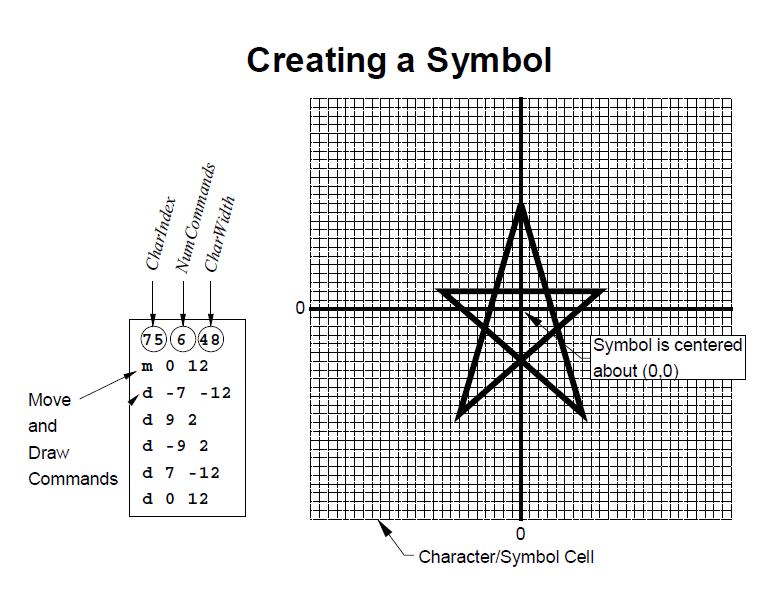
Defining a user-defined plotting symbol shows an example of a character cell and the commands used to define the lowercase letter "y". The height of the character cell is 48.
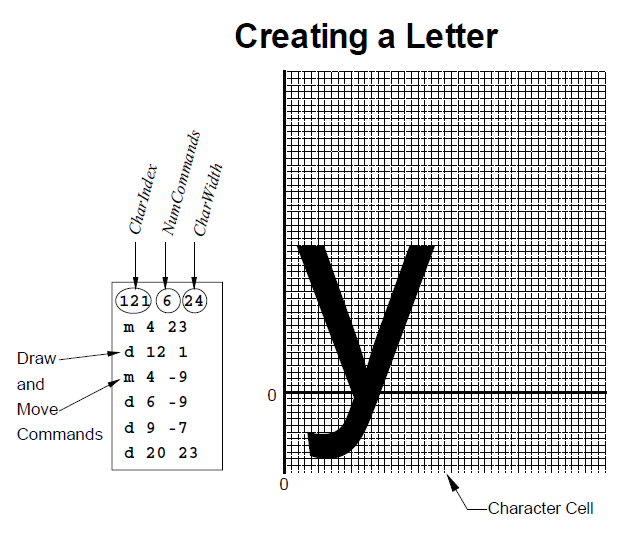
Defining a user-defined plotting symbol shows a symbol being defined. Symbols should be centered about (0, 0) so that they are centered about the point they mark. The font file included with Tecplot RS contains many User-Defined font stroke commands. Most of these are for creating extra plotting symbols, accessible when you use the Symbol Type "Other", enter an ASCII character, and specify the User-Defined font.