License Management
Entering Your License
The first time you launch Tecplot RS after a fresh installation, you will be prompted to enter your license information:
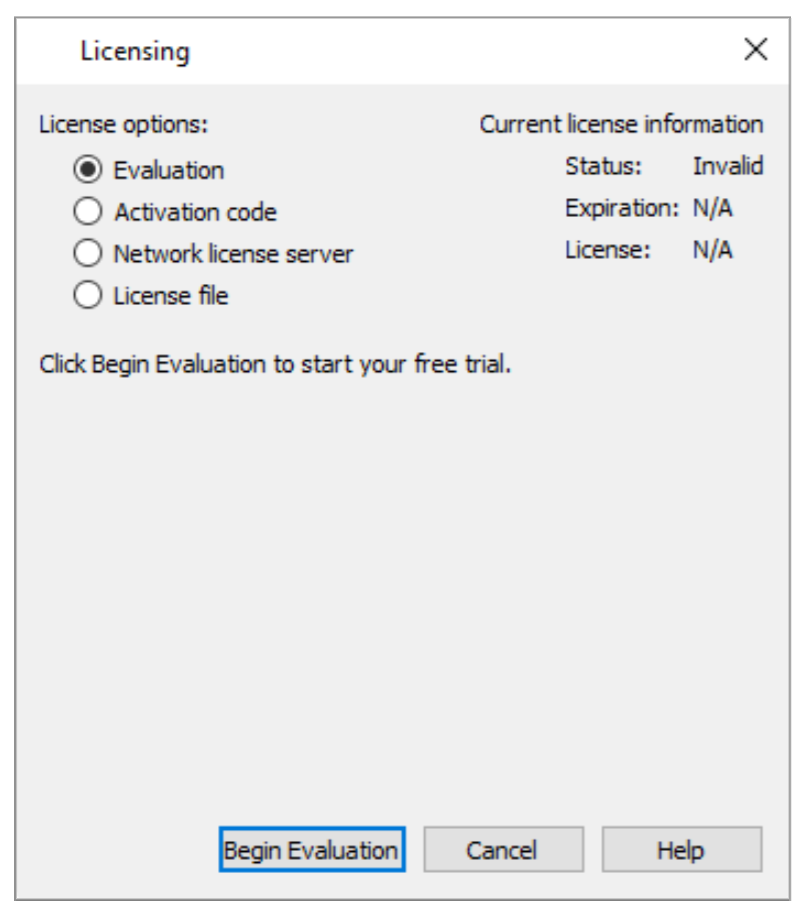
You will also see this dialog if Tecplot RS cannot validate your license information (for example, because your evaluation license has expired, or because the network license server is not available). Additionally, you may change your license information at any time from the menu.
|
SYSTEM ADMINISTRATORS Tecplot products store their license configuration file in a platform-specific location. Each Tecplot product has its own license configuration file. Windows: C:\Users\<username>\AppData\Local\Tecplot Linux: ~/.local/share/data/tecplot The above directories are specific to the individual workstation users. If you want all users of the computer to use the same license configuration for a given Tecplot product, you may move the license configuration file to the product installation directory after initial license setup. To prevent users from editing the license configuration, you may then change the permissions on the license file to be writable only by an administrator or root user. |
How you install your license information depends on what type of license you have.
-
If you wish to evaluate the product before purchasing, you may obtain an Evaluation license with a single click. See Evaluation License Setup.
-
If you have an Activation Code for a Single-User license and have Internet access, you enter the activation code. See Single-User License Setup Using A License File.
-
If you have a License File for a Single-User license, you select the license file. See Single-User License Setup Using A License File.
-
If you have a Network license, you specify the server name and port number of the RLM license server on your network. See Network License Setup.
-
If you have a License File for a Single-User license, you select the license file. See Single-User License Setup Using A License File.
Evaluation License Setup
To obtain a time-limited evaluation license key so you can try the product before purchasing, make sure the "Evaluation" license type is selected in the Licensing dialog, then click Begin Evaluation. The product evaluation period begins. You will see a notice on the product’s Welcome Screen indicating when your evaluation license will expire.
This procedure requires an active Internet connection. If for some reason you cannot fully evaluate Tecplot RS on an Internet-connected computer, or if you need additional time to complete your evaluation, contact Tecplot Support for a time-limited single-user license file, which may then be installed using the instructions in Single-User License Setup Using A License File.
Single-User License Setup Using An Activation Code
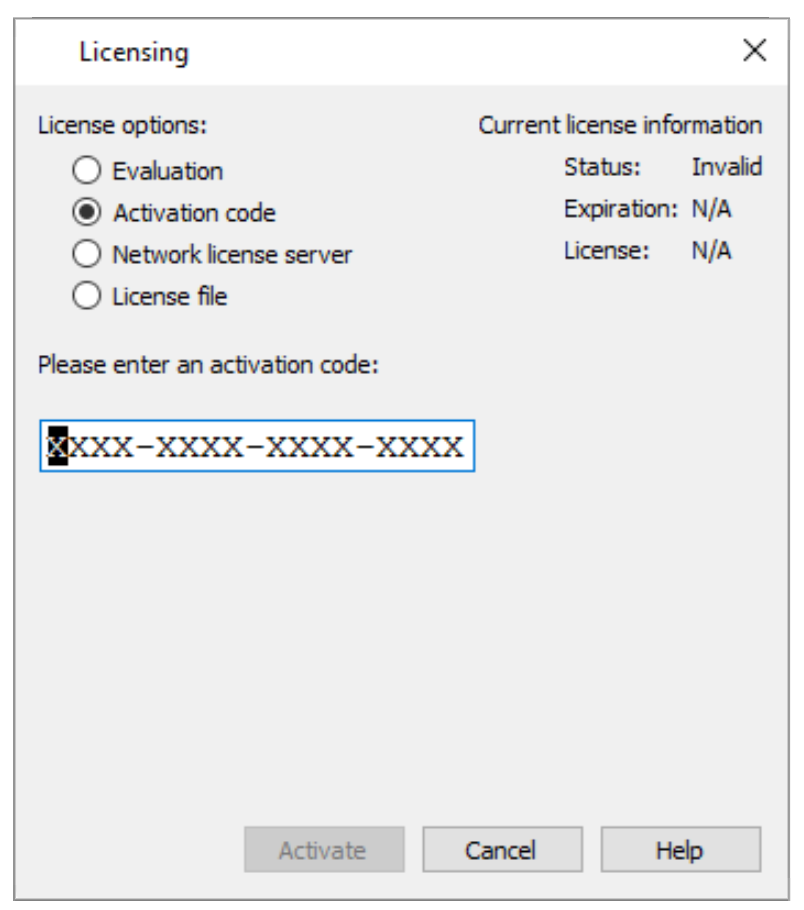
If you received an activation code for your product, allowing it to be activated over the Internet, follow the instructions below. If you received a license key file, or if the workstation you have installed the product on does not have Internet access, see Single-User License Setup Using A License File.
To activate the product, simply enter or paste your activation code in the field provided. Then click Activate.
The license key corresponding to your activation code is downloaded to your computer, and Tecplot RS uses that license.
Single-User License Setup Using A License File
You will need the license file sent to you by Tecplot as an e-mail attachment. Please save it to a file on your computer in an easy-to-find location, such as the Desktop.
| If you do not have your license file, or have lost it, click Request License in the Licensing dialog for instructions on how to obtain it. |
-
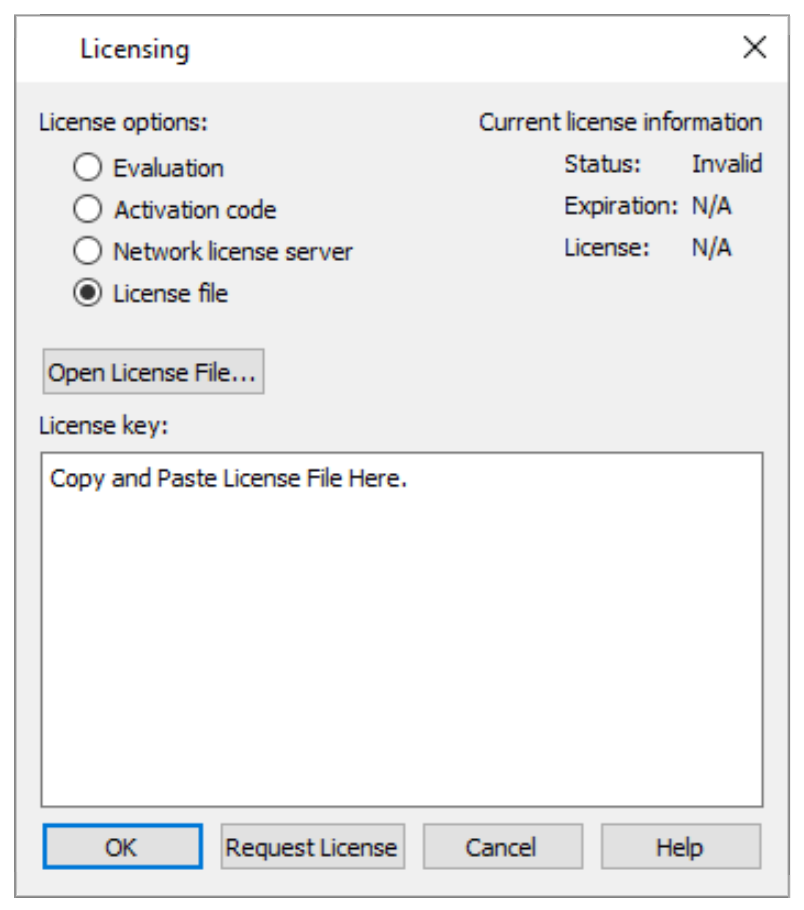
Make sure the "License File" option is selected in the Licensing dialog.
-
Click Open License File…. A file browser appears. Select the license file e-mailed to you, then click Open.
Alternatively, you can Copy and Paste the contents of the license file to the available field.
The message "Status: Valid" appears in the Current License Information panel at the upper right.
-
Click OK to save the license information.
Tecplot RS now uses the chosen license.
Network License Setup
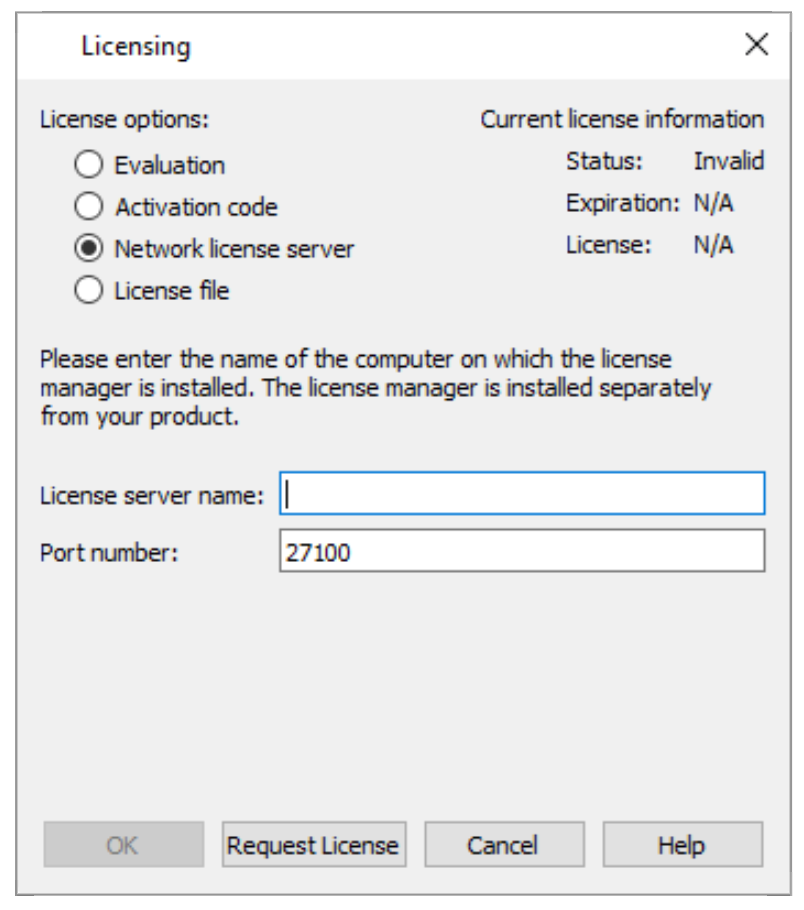
To use a network license, you or your system administrator must first install the Reprise License Manager (RLM) version 11 or newer and the license key for your product on a network server. (See the installation instructions included with the RLM download.) Once this has been accomplished, follow these steps:
-
Make sure the "Network" license type is selected in the Licensing dialog.
-
Enter the server name (you may use a hostname or IP address) and port number of the license server in the fields provided.
-
Click OK to save the license information.
Tecplot RS will now use a license obtained from the license server.
If the product is unable to obtain a license key, an error message will appear, and you should verify that you have specified the correct network license information.
License Roaming
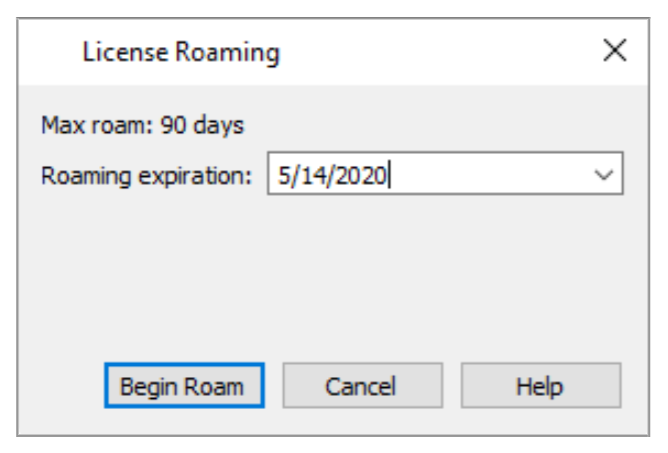
Network license users who need to use Tecplot RS while not connected to the same network as their license server (for example, while traveling) can use license roaming. License roaming allows you to use the product without access to the license server for a limited period of time. The roaming license is considered "in use" by the server continuously until it expires or is returned.
To manage license roaming, choose from the menu. The License Roaming dialog appears.
Starting Roaming
To start roaming, choose the expiration date for the roaming license using the pop-out calendar that appears when you click the roaming expiration date. Your license will expire at the end of that day, at midnight.
| To account for time zones, we suggest roaming for a day longer than you think you need when you will be traveling. |
Click Begin Roam to obtain the roaming license and begin roaming.
|
The license server administrator and the license key may restrict the maximum amount of time users may roam and/or the total number of licenses that may roam at a given time. Additionally, only one instance of Tecplot RS may be run while roaming. |
While roaming, the license status is noted as Roaming in the Licensing dialog, and the expiration date of the roaming session is also shown. You may not change license information while roaming.
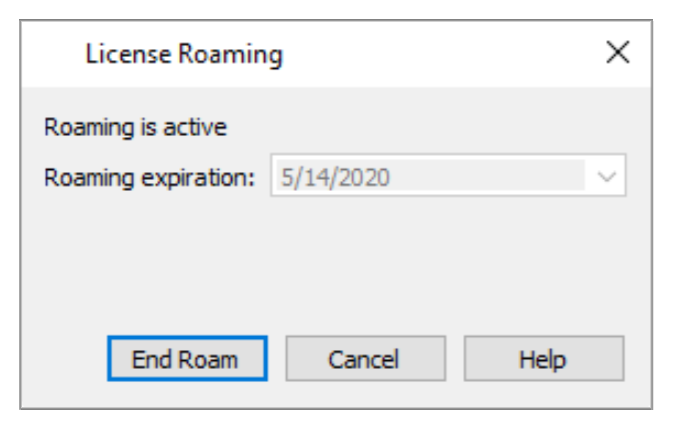
When you are getting close to your roaming license’s expiration date, a notification appears in the Welcome Screen at startup.
| Do not upgrade Tecplot RS while roaming. If you do, your license may no longer work correctly. Set the RLM_ROAM environment variable to -100 before launching to rectify this situation (see RLM_ROAM). |
Ending Roaming
Your roaming license expires automatically at the end of the day (that is, midnight) on the day you selected when you began roaming. After this date, your computer must be able to connect to the network license server to run Tecplot RS.
You may also end roaming early and make your license available for other users. To do this, you must first connect your computer to a network that allows you to reach the license server. Then choose from the menu and click the End Roam button in the License Roaming dialog.
RLM_ROAM
You can initiate roaming from the command line by setting the RLM_ROAM environment variable to the number of days you wish to roam, then starting Tecplot RS from that command line session. The roaming session expires at the end of the day after the number of days specified (for example, if it is noon Tuesday, and you set RLM_ROAM to 2, the roaming license expires at the end of the day Thursday). RLM_ROAM may also be set to the special value today to have the roaming license expire at the end of the current day (the value 0 means that no changes to roaming will be made).
If RLM_ROAM is set permanently (for example, using the System Properties in Windows), the license roaming will be refreshed each time you run Tecplot RS while connected to the network. If RLM_ROAM is 1, for example, each time you start Tecplot RS, the roaming license is refreshed to expire at midnight the following day. This allows you to easily take your computer home with you any night and continue using Tecplot RS while disconnected from the license server, without needing to explicitly roam each day.
You may end a roaming session early by setting RLM_ROAM to -1 before launching Tecplot RS.
| If you are having trouble ending your roaming early (a common cause is upgrading Tecplot RS while roaming), try setting RLM_ROAM to -100 before launching Tecplot RS. The roaming license will be forcibly removed from your workstation, and Tecplot RS will begin requesting a regular license from a license server at each startup. At this point you can obtain a fresh roaming license, if desired. The reservation for your previous roaming license will, however, continue to be held on the license server that issued it until it expires. |