RS Variables Files
When Tecplot RS opens, it loads an RS Variables file: a user-modifiable ASCII text file that allows you to customize how Tecplot RS displays variables, labels, and lines in plots.
More specifically, the RS Variables file:
-
Defines the default variables list in Custom Plot Options Dialog and Plot Options.
-
Allows variables to be renamed for display in Tecplot RS. Most simulators use very short variable names, such as "GOR." These can be renamed to less cryptic names like "Gas/Oil Ratio" when displayed on a plot.
|
In the CMG loader, the RS Variables file is used to translate long variable names to short, as opposed to the short-to-long translation used in other loaders. This applies only to variables for XY data (grid variables default to abbreviated names). For example, the default name for a CMG variable might be "Well Bottom-hole Pressure" where most other simulators simply use "BHP". The longer names can require inconvenient horizontal scrolling, and sometimes the names have to be truncated to fit within Tecplot RS’s internal limits. Tecplot provides a list of commonly-used variables and abbreviations in the rsvariables_cmg.txt file in the Tecplot RS program folder. You can change the abbreviated names to something more meaningful, but each must be unique and may not contain spaces or commas. The longer name will be displayed on the plots. If the CMG variable name is not included in the RS Variables file non-abbreviated name appears in the list. At this time, the translation can’t be performed on variables that have a component value. The component marker appears as a "$C" in the variable name. |
-
Defines variable aliases; that is, different names for a single variable that can be used in comparison plots.
-
Specifies plot options for color, symbol, pattern, and so on, for each variable or entity, controlling the default styles used for plots (unless overridden in Plot Options).
You can also use an RS Variables file to control the default order that variables appear in the list. You might, for example, put the most frequently encountered variables at the top, or sort names alphabetically, or group similar variables together. You can choose to keep the list of variables short, making it easy to find a single item, or expand it to include every solution value that you could potentially encounter in your work. Several other options are available for controlling the master variables list on the Variables page of the Plot Options dialog. These include sorting the list alphabetically and limiting the variables in the list to those loaded from a file or derived.
| RS Variables files do not limit the variables that can be loaded and displayed in Tecplot RS that is, variables can be used even if they don’t appear in the active RS Variables file. Review Variables to learn how to interactively update the master variables list and save the resulting file. |
File Location
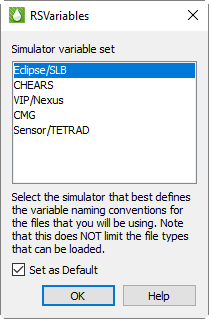
When Tecplot RS is first installed, a selection of RS Variables templates for various simulators is installed with it. Unless you copy your own RS Variables file named rsvariables.txt into the installation directory, you are prompted to choose a template Tecplot RS Variables file from among the ones found in the Tecplot RS installation folder. If you also mark the Set as Default checkbox, the chosen file becomes the designated RS Variables file for future Tecplot RS sessions.
If you use multiple simulators, you can change the active RS Variables file using the Choose button in the RSVariables section of the Variables tab of the Plot Options, or by using a macro (see RSVFile).
We have provided RS Variables templates for the various supported simulators:
-
rsvariables_chears.txt CHEARS (Chevron) naming conventions
-
rsvariables_cmg.txt CMG naming conventions
-
rsvariables_eclipse.txt Eclipse naming conventions
-
rsvariables_sensor.txt Sensor naming conventions
-
rsvariables_vip.txt Landmark VIP naming conventions
| Consider these files starting points copy and customize them to suit your needs. They are most easily edited in the Variables tab of the Plot Options dialog, but they may also be edited using a text editor. An additional copy of each template is provided in the factorydefaults folder in the Tecplot RS installation folder, if you need an unmodified copy. The copies in factory defaults have helpful comments that will help you make the changes you want to make. |
Tecplot RS searches for RS Variables files in the following places, in this order:
-
The folder defined by the RS_USER environment variable. Tecplot RS does not define this environment variable automatically; you can set it up if you want to direct Tecplot RS to the location of RS Variables files that you wish to use. It’s a convenient way of specifying a place where files are located that define user-specific options. State files (.rsgs and .rsxs) files will also be placed in the folder by default, so use a folder for which you have write/create permissions.
-
The home or startup folder. For Windows, this is the "Start In" folder in the shortcut used to launch Tecplot RS, also referred to as the Working Directory.
-
The Tecplot RS installation folder.
If you want to set up a set of standards used by everyone in the company, you might want to put it in the installation folder and/or distribute copies to everyone who has a Tecplot RS installation on their computer. Alternatively, each user can have their own personal set of options by creating the RS_USER environment variable and placing the file in the referenced directory.
| Choose "About Tecplot RS" from the Help menu to view the current value of the RS_USER environment variable along with the path for the RS Variables file in use. |
Editing RS Variables Files
The easiest way to edit a RS variables file is by using the Master Variables List. You can also edit a RS variables file separately from Tecplot RS; it is an ASCII text file that can be viewed and edited using any text editor, such as Notepad, WordPad, or vi. To edit the file, first exit Tecplot RS, since Tecplot RS will only read changes to the file when launching.
The required format is:
long name, short name, line color, line pattern, symbol color, symbol shape, alias1, alias2, alias3
When editing the file, use the following standards:
-
Use one line per variable.
-
All items must be separated by commas.
-
Long variable names can include spaces, but spaces are ignored or "squeezed out" of all other items.
-
The short variable names should exactly match those used in the data files (whether from the simulator or your files containing observed data).
-
Comments (lines beginning with a "#") will be ignored. Note that when you modify an RS variables file from inside Tecplot RS, comments will be lost, so this feature is best suited for templates that will be edited by hand before being used with Tecplot RS.
-
The file header lists the colors, patterns, and shapes that can be used.
-
At a minimum, you must include both Long Name and Short Name. Long Name is the long variable name as it should appear on plots. Short Name is the acronym variable name as it is found in the file output by the simulator (OPR, WPC, SWAT and so on).
-
Alias1 through Alias3 are optional. They are alternative names, or aliases, for the same variable. They can be used for different simulators (for example, Eclipse versus VIP), or names such as those found in user-created ASCII files.
The first few lines of the file (after header lines) are shown here:
| Long Variable Name | Short Variable Name | Line Color | Line Type | Symbol Color | Symbol Type | Variable Alias1 |
|---|---|---|---|---|---|---|
Gas Prod Rate, |
GPR, |
Red, |
Solid, |
Red, |
Square, |
QGP |
Water Prod Rate, |
WPR, |
Blue, |
Solid, |
Blue, |
Diamond, |
QWP |
Oil Prod Rate, |
OPR, |
Green, |
Solid, |
Green, |
Delta, |
QOP |
The top line is not included in the file. It is displayed here for informational purposes. The first two items in a row are the long variable name followed by the short name (typically used by the simulator). The next four values define the default settings for colors, line patterns, and symbol shapes. The last value is a variable alias. You can include up to three variable aliases (comma-separated).
Include any variable names unique to grid data. In you can manually assign range limits to grid variables in the Axis Scale region of the page.
A set of unique entries, called "Entity *", are defined in RS variables files to provide default line and symbol styles for plots that display multiple entities, such as XY Entities plot.