Command Line Options
You can launch Tecplot RS with specific instructions from the command line (on all supported platforms) or by using a shortcut icon (on Window’s platforms). This section describes how to operate Tecplot RS by these methods.
Tecplot RS Command Line
Launching Tecplot RS from the command line requires the following general form:
tecplotrs [options] ['project file' or 'macro file']
where:
-
[project file] indicates a file with the extension .rsprj, including the path. See also Projects. May not be specified with a macro file name.
-
[macro file] indicates a macro file name, with its directory path. See also Macros: Task Automation. May not be specified with a project file name.
-
[options] represents one or more of the following optional flags (all supported platforms accept all flags unless noted otherwise):
[project file] |
Project file you would like to load (*.rsprj). |
[macro file] |
Macro file you would like to load (*.mcr). |
--help |
Show command line option help and exit. |
-v |
Show #tecplotrs version number and exit. |
-b |
Run in batch mode. |
-nobatchlog |
Suppress creation of the file batch.log during batch mode operation. |
-quiet |
Turns off all standard-out messages (Linux only). |
| To use a command line option on a Windows platform, start Tecplot RS from the Run command or the command prompt. |
For example, you can use the command line to instigate the following:
| Command Line Input | Result |
|---|---|
tecplotrs |
Run Tecplot RS |
tecplotrs myproject.rsprj |
Run Tecplot RS, loading the project myproject.rsprj |
tecplotrs a.mcr |
Run Tecplot RS and play a macro called a.mcr |
Using Command Line Options in Windows Shortcuts
Instead of adding options in the command line, you can also create a Windows shortcut to prompt the same behavior. If you frequently run Tecplot RS using the same command line flags, it may be useful to create a shortcut on your Windows desktop that launches Tecplot RS with the desired command line flags. To do this:
-
Right-click in any blank space on your Windows desktop.
-
Choose from the resulting context menu.
-
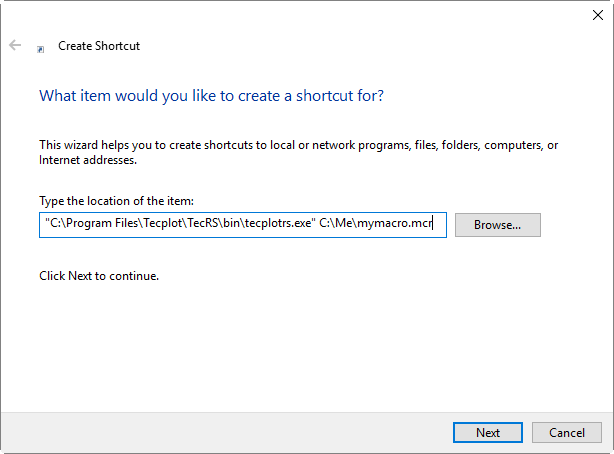
In the Create Shortcut dialog, type the location of the Tecplot RS executable, along with any command flags you want to specify. For example:
"C:\Program Files\Tecplot\TecRS 2026 R1\bin{ProductExecutableName}.exe" C:\Me\mymacro.mcr
-
Click the Next button.
-
Type a name for your shortcut and click Finish. A new shortcut icon will appear on your Windows desktop.
Changing Shortcuts
You can alter an existing shortcut by doing the following:
-
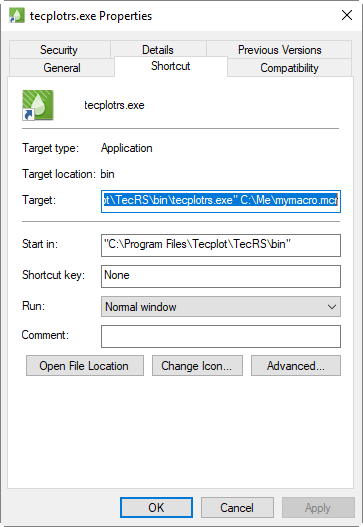
Right-click on the shortcut icon you want to change and choose "Properties".
-
On the Shortcut page, modify the command line by changing the Target text. To change the folder that Tecplot RS runs from, change the Start in location.