To animate zones, select "Zones" from the Animate menu. From the Zone Animation Details dialog, specify the animation mode, Start Zone, End Zone, and Zone Skip in the fields provided.
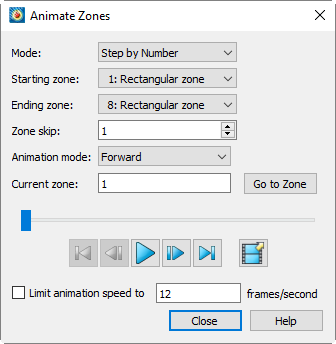
You can animate to a file or "On Screen". (See also Section 29 - 4 “Animation Export”.)
Use the Mode drop-down menu to select one of the following two options:
• Step by Number - Animate all zones from the first zone to the last zone with a skip specified in the Zone Skip field. A Zone Skip of 1 animates all zones.
• Group Step by Number - Animate zones in groups (as specified by the Group Size field). For example, a Group Size of 2 will animate all zones in groups of 2 (i.e. zones 1 and 2, followed by zones 3 and 4, and so on).
The following fields are also available:
• Starting zone - The first zone in the animation.
• Ending zone - The last zone in the animation.
• Zone Skip or Group Size - The label on this field changes depending on the setting of the Mode drop-down menu, described previously. Decides the increment for switching zones (for Step by Number) or the size of the zone group (for Group Step by Number).
• Animation Mode - Select whether to animate forward, backward, loop (forward, then back to the beginning for another pass forward), or bounce (forward, then backward, then forward, then backward...).
• Current Zone – Indicates the zone displayed. This may be edited to jump to a specific zone; click Go to Zone after editing.
• Slider – The slider can be dragged to change the current step. The following buttons may also be used.
•  – Jumps to the first map.
•  – Moves one step toward the first map.
•  – Plays the animation as specified by the Animation direction field. The Play button becomes a Pause button while the animation is playing.
•  – Moves toward the last map.
•  – Jumps to the last map.
Click the filmstrip icon to export the animation to a file. See Animation Export. Note that some of the settings in this dialog (such as direction and speed) do not apply when exporting to a file. Instead, you may add these effects later using a video editor, if desired.
• Limit Animation Speed - Toggle-on to limit the animation speed to the value specified in the text field.
|
|
 The Animate Zones dialog is not available for transient datasets.